
Upgrading your QNAP NAS from RAID 1 to RAID 5 can increase usable capacity and improve overall efficiency.
RAID 1 mirrors data for resilience, but it restricts the amount of storage you can actively use. RAID 5 provides a more practical balance between protection and capacity, which makes it suitable for environments where storage requirements are steadily growing.
However, changing RAID levels involves redistributing data across multiple drives. Any interruption, misconfiguration, or underlying disk issue during this process can lead to data loss. Careful preparation and a clear understanding of QNAP’s storage management tools are essential for a smooth and controlled migration.
This guide outlines how to migrate RAID 1 to RAID 5 safely and explains when to involve RAID Recovery Services if the process fails or your data becomes inaccessible.
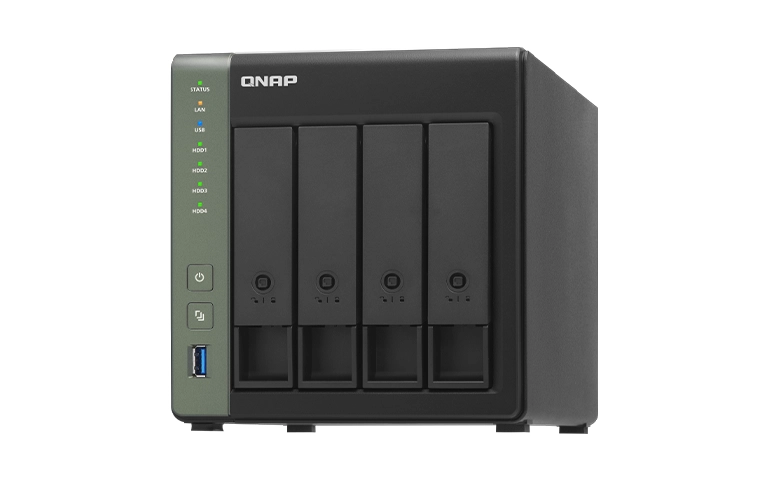
Understanding RAID 1 and RAID 5 on QNAP
Before you start the migration, it is important to understand the difference between RAID 1 and RAID 5. Both provide data redundancy, but they differ in available capacity, performance, and how they handle drive failures.
QNAP NAS systems let you manage these configurations through Storage & Snapshot Manager, which gives you direct control and monitoring of your RAID setup.
RAID 5 gives you more usable capacity while still protecting against a single drive failure. For many QNAP users, it is a practical step up when storage needs are growing but redundancy remains essential.
Why Upgrade from RAID 1 to RAID 5
Migrating from RAID 1 to RAID 5 on your QNAP NAS increases usable capacity and improves overall performance.
RAID 1 mirrors data, so half of the total space is reserved for redundancy. With RAID 5, parity is distributed across the drives, giving you more usable storage while still protecting against a single drive failure.
RAID 5 typically offers faster read speeds and balanced write performance, which is useful for file sharing, virtualisation, and backup workloads on a QNAP NAS.
It is also easier to scale. You can expand a RAID 5 array by adding drives as your data requirements grow, providing better long-term flexibility and value.
You can learn more about QNAP array performance in our post on QNAP vs Synology.
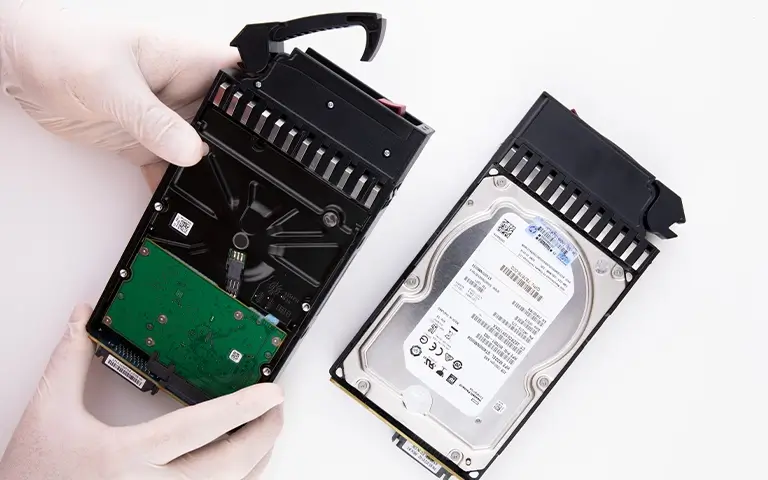
Preparing for QNAP RAID Migration
Before you begin the migration, it is essential to prepare your QNAP NAS and installed drives to reduce the risk of data loss. Proper preparation helps ensure a smoother and more predictable move from RAID 1 to RAID 5.
Follow these preparation steps:
Back up your data: Create a complete backup of critical files to an external device or secure cloud storage before changing any RAID settings.
Check drive health: Review the status of all drives in QNAP Storage & Snapshot Manager and replace any that report errors, bad sectors, or warnings.
Verify firmware updates: Make sure your QNAP NAS is running the latest QTS or QuTS hero firmware to minimise compatibility and stability issues during migration.
Use identical drives: Wherever possible, use drives of the same capacity and model to maintain consistent performance and predictable rebuild times.
Ensure a stable power supply: Connect the NAS to an uninterruptible power supply (UPS) to reduce the risk of power loss and corruption while the migration is in progress.
Spending time on these checks upfront helps to prevent avoidable issues and makes the RAID migration process more reliable.
Fast turnaround times for business-critical data
Steps to Migrate RAID 1 to RAID 5 on QNAP NAS
QNAP NAS systems allow you to change RAID levels directly through Storage & Snapshot Manager. The migration can take several hours depending on drive size and system load, so it is critical that the NAS remains powered for the entire process.
Follow these steps carefully:
Log in to the QTS or QuTS hero interface using an administrator account.
Go to Storage & Snapshots and select the volume that is currently configured as RAID 1.
Choose the migration option and set RAID 5 as the target configuration.
Insert one or more identical drives into the free bays. The system should detect them and list them as available for inclusion in the array.
Confirm the changes. QNAP will begin redistributing data and writing parity across all participating drives.
Track the migration status in Storage & Snapshot Manager. Do not power off, restart, or remove drives until the operation has completed.
When the process finishes, check that files and shared folders are accessible and confirm the RAID 5 status under Storage Pools.
If the migration fails, or if drives are no longer recognised during the process, this can indicate a controller issue or synchronisation problem. Avoid repeating the migration or forcing a rebuild, as this can worsen the damage.
Instead, contact a professional recovery provider. Our detailed post on how to repair a degraded RAID explains how incorrect rebuild attempts can result in permanent data loss.
Common Issues During RAID Migration
Even with careful preparation, RAID migration can still fail due to hardware or system faults. Understanding common issues helps you protect your data and respond correctly.
Typical problems include:
Drive not detected: Often linked to loose cables, incompatible drive models, or outdated firmware.
Interrupted migration: Power loss or a system crash can halt the process and leave data in an incomplete state.
Rebuild errors: Weak sectors or corrupted parity can cause the rebuild to fail or stall.
Controller issues: A damaged or unstable RAID controller can interrupt migration and prevent the array from being recognised correctly.
If any of these issues arise, do not reinitialise the array or attempt another rebuild. These actions can overwrite remaining data and reduce the chances of a successful recovery.
For further insight, see our guide on failed QNAP QTS hero NAS recovery.
Professional Help for Failed QNAP RAID Migrations
If your RAID migration fails or the array becomes inaccessible, it is important not to keep troubleshooting on your own. Actions such as forced rebuilds, repeated initialisation, or manual configuration changes can overwrite data and make professional recovery significantly more difficult.
Specialist engineers use dedicated imaging tools and structured analysis to recover data from QNAP systems affected by migration errors, parity issues, or failed rebuilds.
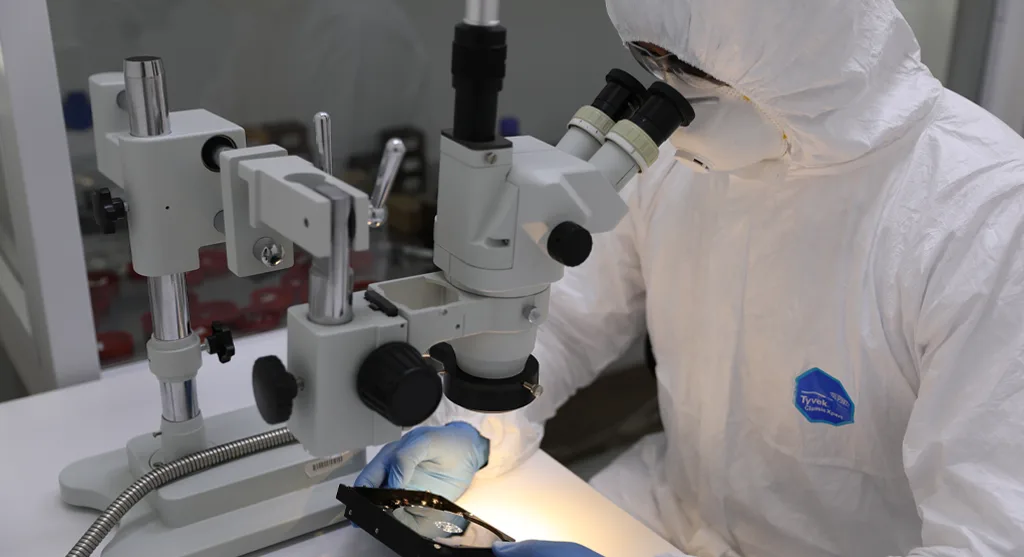
At RAID Recovery Services, we manage cases involving parity corruption, unsuccessful expansions, and drives that are no longer recognised. Our cleanroom facilities and controlled recovery procedures help ensure that data is retrieved safely without introducing further damage.
For more examples of complex QNAP array recovery, visit our detailed case on QNAP RAID 5 mdadm failure recovery. Our team can analyse the system, rebuild the array virtually, and restore critical files while helping to minimise downtime.
Conclusion
Migrating from RAID 1 to RAID 5 on your QNAP NAS is a practical way to gain capacity while keeping redundancy in place. With solid preparation and careful execution, the process can be completed safely and deliver better performance and more usable space.
That said, any interruption, drive failure, or misconfiguration during migration carries real risk. Always keep current backups and avoid restarting, reconfiguring, or forcing rebuilds if something goes wrong.
At RAID Recovery Services, we specialise in repairing failed QNAP arrays and restoring lost data. Contact our team to review your case and plan a secure route back to full data access.
Trust the experts with proven results
Frequently Asked Questions
Can I migrate RAID 1 to RAID 5 without losing data?
Yes. QNAP supports migrating RAID 1 to RAID 5 while keeping data in place, but the process is not without risk. Always create a full backup before you start to avoid permanent loss if something goes wrong.
How long does a QNAP RAID migration take?
It depends on drive size, NAS performance, and total data volume. In many cases, a migration can take several hours, and larger arrays may require most of a working day to complete.
What should I do if the migration process stops or fails?
Stop all activity on the NAS immediately. Do not reinitialise, rebuild, or reconfigure the array, as this can overwrite existing data. Instead, contact a professional recovery provider to assess the issue safely.
Can RAID Recovery Services restore failed QNAP arrays?
Yes. RAID Recovery Services can recover data from failed QNAP arrays affected by incomplete migrations, degraded volumes, or RAID rebuild errors. Our engineers use dedicated imaging and RAID reconstruction methods to restore data while protecting integrity.
How can I prevent future RAID migration issues?
Maintain regular backups, keep your QNAP firmware up to date, and monitor drive health in Storage & Snapshot Manager. These measures help reduce the risk of failures during future RAID changes or expansions.